The Eucharist Guide
This is a guide to the operation of the FMG Eucharist liturgy 'online', as a shareable web page for use in Google Meet or Zoom (or any other online meeting package that allows attendees to share a screen). The examples given here are all based on Google Meet.
- Prepare:
Open the liturgy (see the button above) and scroll down to the “Readers” section: Click the “Clear/Reload” button (indicated here by the arrow) in order to reload the names and reset so that there are no names selected.
- Screen size:
Set the screen to be taller than it is wide so that when you're sharing it It leaves space for the mug shots and the participant list. - When the meeting starts:
The meeting screen that will be seen by attendees will look something like this: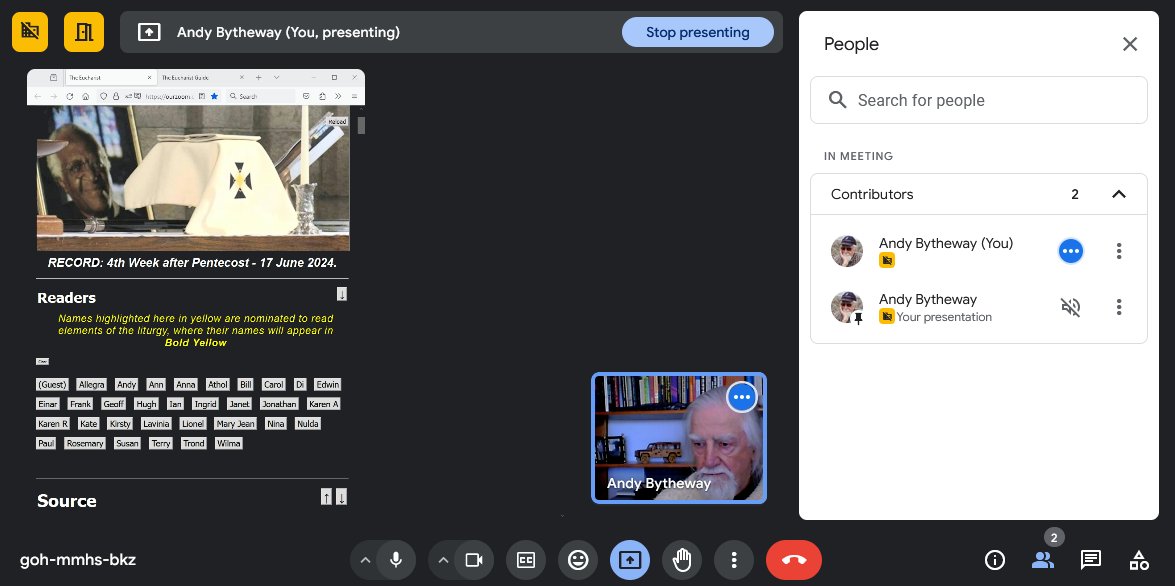 Normally Google Meet will push the shared image to the left so that there is space for the mug shots in the centre. It's a good idea to open the list of participants which will appear at the right, or have someone with you calling out names as people arrive.
- Choosing readers:
You choose readers by clicking on their name, but you have to do that on the actual Eucharist liturgy page. Participants will see the name buttons changed to yellow on the shared view in Google Meet as you click them on the Eucharist page. Suppose that Lavinia, Ian, and Frank have arrived: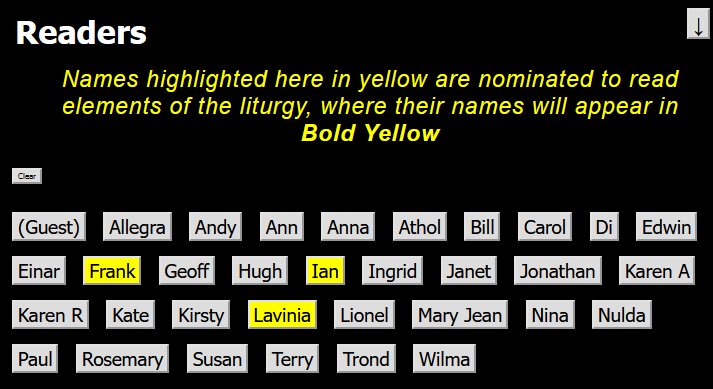 You can deselect them by clicking on the name button again. Note that there is one button labelled “(Guest)”, so that if there is a guest who wishes to read you can select this button and tell them to watch out for that “name” as the service proceeds.
- Managing two pages:
You can see that you have to have two web pages open at the same time - one with the actual Eucharist liturgy so that you can click the buttons, and one with the Google Meet view on it so that you can see what the others see. Depending on your browser settings, these two pages may be on different tabs or on two different windows.
- To switch pages between tabs, use [CTRL] and [TAB] together
- To switch pages between windows, use [ALT] and [TAB] together
If you have never done this it takes a little practice, but it's a very good trick if you're working a lot with different apps and different web pages.
Of course, if you have two screens then you can have both web pages open and visible at the same time. - The names:
The names are inserted into the text of the liturgy automatically: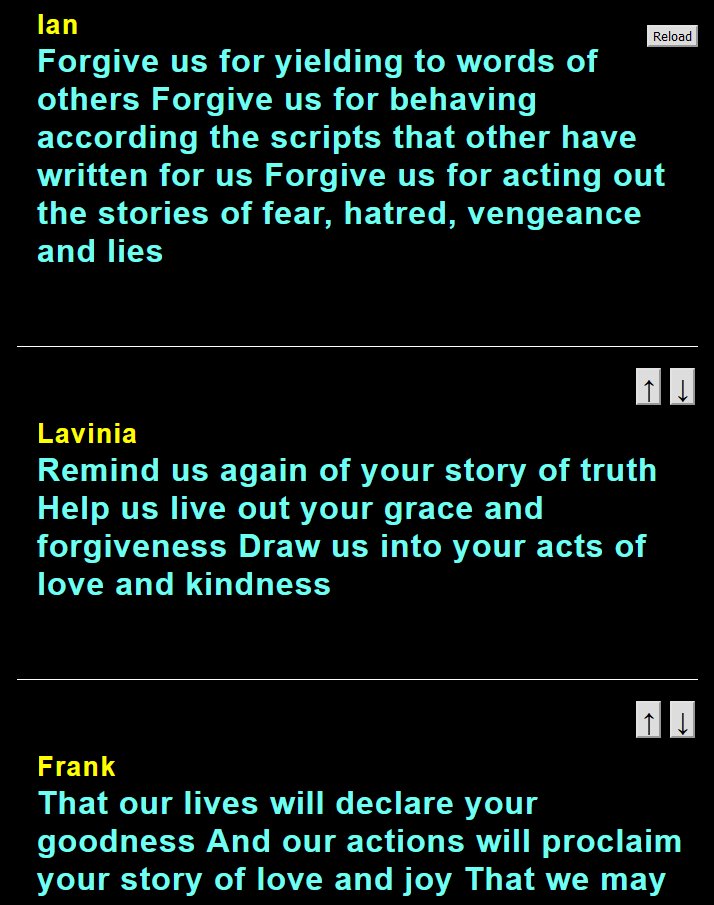 Reader`s names will come for the liturgy, the first lesson, the psalm and the Gospel in alphabetical order. When you click the link in orange a new tab will open with the text that is required; however, that text can be pre-loaded into the liturgy by someone with Admin privileges. Contact Andy to get the password and identity if you want to do Admin.
Finally, as the service proceeds you can move from one section to the next by clicking the up and down arrows at the right hand side; if for some reason you need to reload the page there is a button to click at the top right hand corner, but this is not normally necessary.